

His SEO, PPC, and AI-driven automation work has helped clients increase lead generation by as much as 187%. B&FPS has been named among the Best SEO Agencies, Best PPC Agencies, and Best Web Design Agencies in Miami by Expertise.com every year from 2023 through 2025, and holds a 5-star Google rating as a certified Google Partner.
Daniel holds a Master's in Interactive Technology from the University of Alabama and a Bachelor's in Public Administration from Barry University. He's completed specialized training in digital marketing through the University of Illinois at Urbana-Champaign and web development, coding, and business through the University of Michigan. He's a member of the Honor Society of Phi Kappa Phi and the Golden Key International Honour Society.
Is your WordPress site crawling when it should be racing? A slow website hurts your sales, kills your SEO, and frustrates visitors before they see what you offer.
Studies show users leave sites that take over 3 seconds to load. The good news? You don’t need to be a tech wizard to fix it.
By following these simple steps about how to increase website speed in WordPress, you can save money by not having to hire someone and still get amazing results.
Why Website Speed Matters
Your website’s speed directly impacts your bottom line. Google uses site speed as a ranking factor, so slower sites rank lower in search results. Research shows each second of delay cuts conversions by up to 7%. This makes how to increase website speed in WordPress a must-do task for any site owner.
When people hit a slow site, they leave fast. This high bounce rate tells search engines your site isn’t worth showing to others. Mobile users, who make up most web traffic now, are even less patient with slow pages.
How to Measure Your Current WordPress Speed
You need to know how fast (or slow) your site is before you can fix it.
Step #1: Run a Speed Test
Here’s how to check your WordPress site speed:
- Open a private browsing tab so cached data won’t affect results
- Go to GTmetrix.com
- Type your website URL in the test field
- Let the test finish
- Here’s some other websites to test your website speed: PageSpeed Insights, Pingdom Website Speed Test, and CatchPoint WebPageTest.
If your site takes 3 or more seconds to load, it’s time to make some changes. Let’s fix that problem with these simple steps.
Essential Tools for WordPress Speed Optimization
You don’t need dozens of plugins to speed up your site. In fact, too many plugins can be part of the problem. We’ll focus on two powerful tools that can make the biggest difference.
Step #2: Install and Set Up WP Rocket
WP Rocket is the fastest way to speed up a WordPress site. It’s simple to use but powerful under the hood.
Follow these steps to get it set up:
- Visit WP Rocket through this link: bandfps.com/speed
- Choose the plan that fits your needs (Single for one site, Plus for up to three sites, or Multi for agencies)
- Go to ‘My Account’ and click the orange ‘Download WP Rocket’ button
- Log in to your WordPress dashboard
- Go to Plugins > Add New > Upload Plugin
- Upload the file you just downloaded and activate it
The great thing about WP Rocket is that it automatically enables caching, GZIP compression, and lazy loading for images right away. But to get the best results, you should adjust a few settings.
Let’s optimize WP Rocket for maximum speed:
- Hover over WP Rocket in your WordPress Admin Bar
- Click on Settings, then File Optimization
- Test each option one by one to make sure they don’t break your site:
- Check ‘Minify CSS Files’
- Click Save Changes
- Visit your site and do a hard reload (Mac: Command+Shift+R, Windows: Control+Shift+R)
- If everything works, go back and enable the next option
- Continue with ‘Optimize CSS Delivery’ and the rest of the options
This careful testing ensures you get all the speed benefits without breaking your site’s design or functions.
According to a case study by Kinsta, WP Rocket can improve page load times by up to 63% just by enabling its basic features. That’s a huge boost for minimal effort.
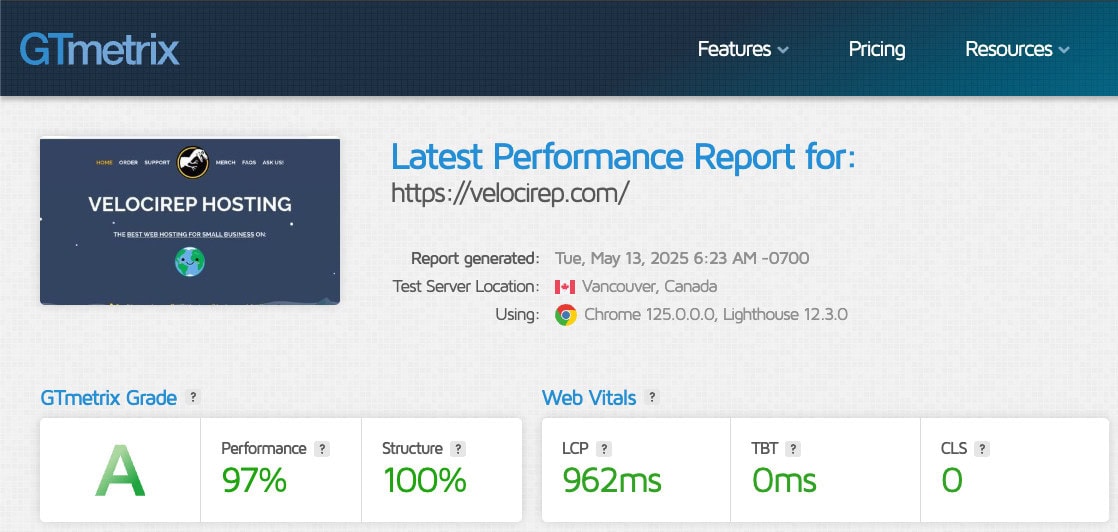
Note: GTmetrix results can vary slightly with each test due to a number of factors affecting site speed, but they offer a solid benchmark. I got this result after the third test I ran:
Step #3: Optimize Your Images with ShortPixel
Large images are often the biggest speed killers on WordPress sites. Even with WP Rocket’s built-in optimization, you need a dedicated solution for images.
ShortPixel is perfect for this job. Here’s how to set it up:
- Visit ShortPixel through this link: bandfps.com/images
- Sign up for an account (they offer both one-time and monthly plans)
- Go to your Dashboard and click on API Keys
- Generate a new key and copy it
- In WordPress, go to Plugins > Add New and search for ShortPixel
- Install and activate the plugin
- Paste your API key when prompted
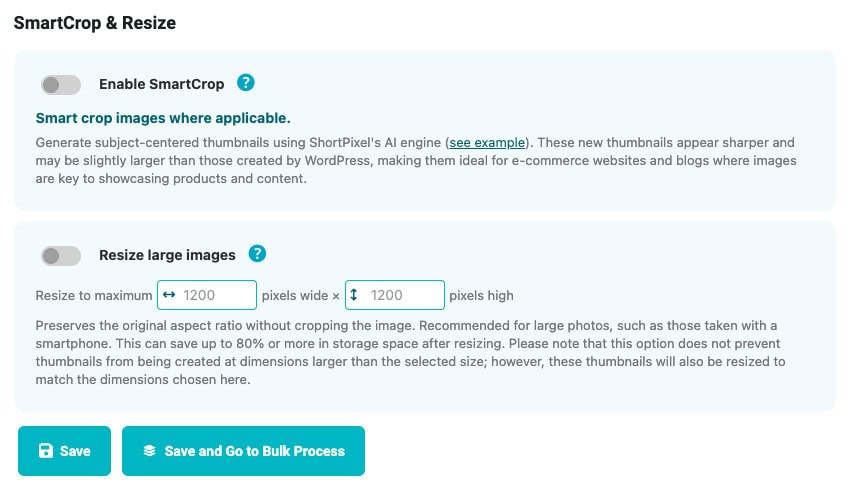
- Go to Image Optimization Settings
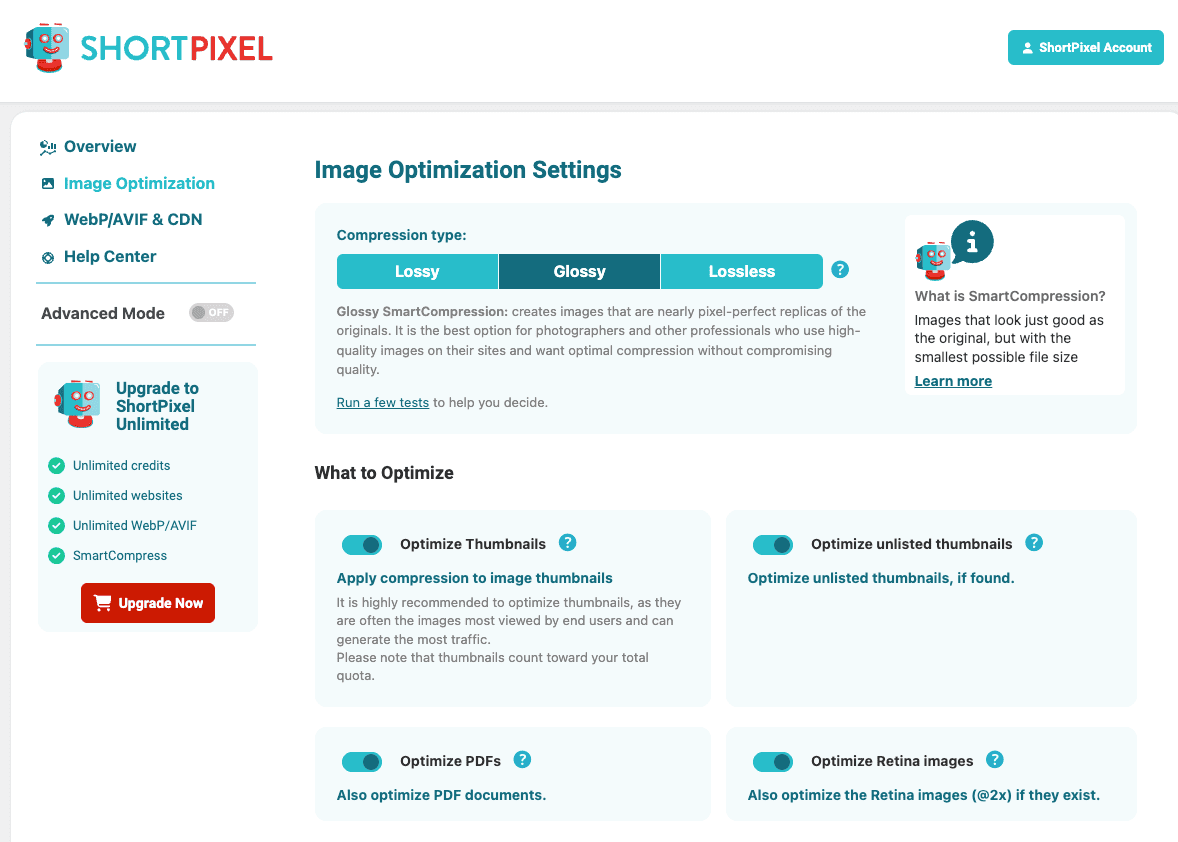
For the best balance of quality and speed, use these settings:
- Compression type: Glossy (best balance of quality and speed)
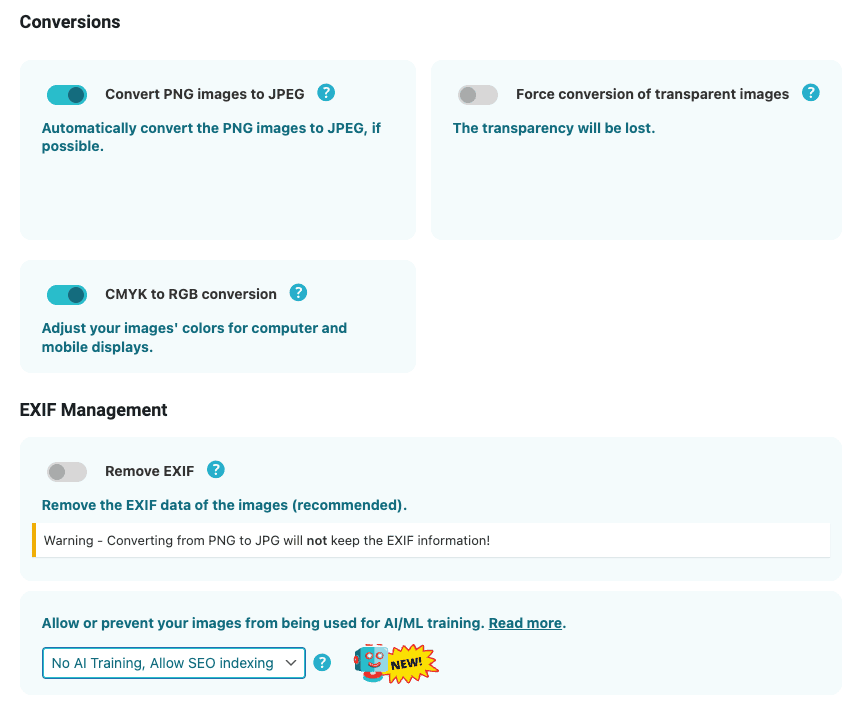
- Enable all basic settings except “Remove EXIF”
- For AI settings, choose “No AI Training, Allow SEO Indexing”
ShortPixel will automatically optimize new images you upload. To fix existing images, go to the ShortPixel menu and click “Bulk Processing” to compress all your old images at once.
Beyond Plugins: Advanced Steps to Speed Up WordPress
Installing the right plugins is just the start. Let’s look at other key factors that affect how to increase website speed in WordPress.
Step #4: Audit and Remove Unnecessary Plugins
Too many plugins slow down your site and create security risks. Here’s how to clean up:
- Go to Plugins > Installed Plugins in your WordPress dashboard
- Review each plugin and ask:
- Do I actually use this?
- Can another plugin I have do this job?
- How much does this impact my site speed?
- Deactivate and delete any plugins you don’t need
According to WP Beginner, each plugin can add 20-100ms to your page load time. A site with 30 plugins could be 1-3 seconds slower just from plugin bloat!
Step #5: Choose a Lightweight Theme
Your WordPress theme can make or break your site speed. Fancy themes with lots of features often load slowly.
Good lightweight theme options include:
- GeneratePress (highly recommended)
- Astra
- Kadence
- Blocksy
These themes are built for speed but still look great and offer plenty of customization. Our team often uses GeneratePress because it loads in under 0.5 seconds and works well with page builders.
Step #6: Upgrade Your Hosting
If you’ve done everything else and your site is still slow, your hosting might be the problem.
If your website uses shared hosting, think of it this way:
- Shared hosting is like living in an apartment building where everyone shares resources
- VPS (Virtual Private Server) hosting is like having your own house in a neighborhood
- Dedicated hosting is like owning a large estate with full control
If you’re on cheap shared hosting (like Bluehost or Hostgator), your site speed suffers when:
- Other sites on your server get heavy traffic
- Your “neighbors” have security problems
- Your own traffic increases
For most small to medium sites, VPS hosting offers the best balance of price and performance. It gives you dedicated resources without the high cost of dedicated hosting.
That being said, we offer the best web hosting for small business through our own hosting company, VELOCIREP. Use coupon code ‘YOUTUBE’ for 50% off your first month!
Real-World Success Story
A local photography business came to us with a WordPress site that took 8.2 seconds to load. After implementing how to increase website speed in WordPress strategies:
- Installing and optimizing WP Rocket
- Compressing all images with ShortPixel
- Removing 12 unnecessary plugins
- Switching to a lightweight theme
- Moving from shared to VPS hosting
Their load time dropped to 1.8 seconds – a 78% improvement! Within three months, their organic traffic increased by 32% and contact form submissions went up 27%!
Common WordPress Speed Issues and How to Fix Them
Let’s address some specific problems that might be slowing down your WordPress site.
Step #7: Fix Render-Blocking Resources
When browsers load your page, certain scripts and stylesheets can block rendering until they finish loading. This causes the blank screen users see before your content appears.
Here’s how to fix this with WP Rocket:
- Go to WP Rocket > Settings > File Optimization
- Enable “Optimize CSS Delivery”
- Check “Load JavaScript Deferred”
- Check “Delay JavaScript Execution”
These settings tell browsers to load certain resources only when needed, rather than blocking page rendering.
Step #8: Set Up Browser Caching
Browser caching stores parts of your site on visitors’ devices so they don’t need to download everything again on return visits.
WP Rocket handles this automatically, but you can check your settings:
- Go to WP Rocket > Settings > Cache
- Make sure “Enable caching for mobile devices” is checked
- Under “Cache Lifespan,” set it to at least 8 hours (or longer if your site doesn’t change often)
According to Google, proper browser caching can reduce load times by up to 20% for returning visitors.
Step #9: Optimize Your Database
Your WordPress database collects clutter over time, including:
- Post revisions
- Spam comments
- Trashed items
- Expired transients
Clean it up with WP Rocket:
- Go to WP Rocket > Database
- Select all options except “Optimize Tables” (which you should run separately and carefully)
- Click “Save Changes and Optimize”
Run this cleanup once a month to keep your database lean and fast.
FAQs About WordPress Speed
How fast should my WordPress site load?
Aim for under 2 seconds, but ideally under 1.5 seconds. Google’s research shows 53% of mobile visitors leave if a page takes longer than 3 seconds to load.
Will changing hosts really make a difference?
Yes, hosting is often the biggest factor in how to increase website speed in WordPress. In our testing with identical sites, VPS hosting was typically 30-40% faster than budget shared hosting.
Do I need to use a CDN (Content Delivery Network)?
A CDN helps if you have visitors from different countries or regions. It stores copies of your site on servers worldwide, delivering content from the location closest to each visitor. For local businesses with mainly local traffic, a CDN is less important than other speed factors.
How many plugins is too many?
It’s not just about the number but the quality. Ten well-coded plugins might outperform five poorly coded ones. That said, try to keep your total under 20, and regularly review if you’re really using all of them and if they’re being updated as it could pose a security vulnerability.
Will speed optimization break my site?
If done carefully, no. That’s why we recommend testing each change individually. Always take a back up your website before starting and making major changes so you can restore it if anything goes wrong.
Measuring Your Success
After implementing these steps to improve how to increase website speed in WordPress, it’s time to see if they worked.
Step #10: Test and Compare
- Wait 24 hours after making all changes to ensure caching is working properly
- Run another GTmetrix test using the same settings as your baseline test
- Compare the key metrics:
- Page load time (should be much lower)
- Performance score (should be higher)
- Web Vitals scores (should be improved)
A good target is to get your speed under 2 seconds and your performance score above 90%.
If you’re not seeing the improvement you expected, look at GTmetrix’s recommendations to find what’s still causing problems. Often, it might be:
- Third-party scripts (like Facebook Pixel or Google Analytics)
- Large video embeds
- Complex sliders or animations
- Custom fonts loading inefficiently
Why Mobile Speed Matters Even More
In 2023, over 60% of web traffic came from mobile devices, according to Statista. Google now uses mobile-first indexing, meaning they rank your site based on its mobile version.
Mobile users face unique challenges:
- Less powerful devices
- Potentially slower connections
- Less patience for slow loading
Test your mobile speed specifically by:
- Using GTmetrix’s mobile testing option
- Checking Google’s Mobile-Friendly Test
- Using your own phone on cellular data (not WiFi) to visit your site
If your site loads fast on mobile, it will almost certainly be fast on desktop too.
Conclusion
Following these steps about how to increase website speed in WordPress will transform your website from sluggish to lightning-fast. Remember that speed optimization isn’t a one-time task but an ongoing process. As you add new content and features to your site, regularly check your speed and make adjustments.
The benefits are clear: better SEO rankings, higher conversion rates, lower bounce rates, and happier visitors. Even small improvements in load time can have big impacts on your business results.
What speed issues is your website facing? Is it plugins, images, theme, or hosting? If you’re still unsure and need help implementing all of these fixes on your website, we have an affordable WordPress speed optimization package, so make sure to contact us today!
We hope you learned something today about how to increase website speed in WordPress. Visit our blog for more articles and subscribe to our email list to keep learning more about digital marketing!
Disclaimer: We are affiliates for both WP Rocket and ShortPixel. If you decide to make a purchase through our links, we may receive a commission at no additional cost to you. We only recommend tools that we use and believe will add maximum value to your business.